JADA HELP
How to prepare a PDF for business card printing
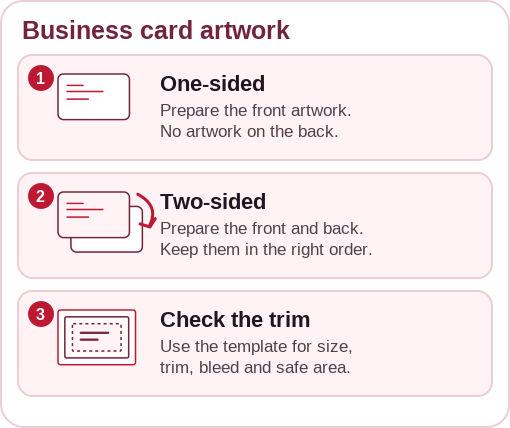
Check the finished card size, keep text away from the cut edge and prepare the front and back for business card printing in Montego Bay.
-
Design one card at the finished size
Confirm the trim size for the card you selected. Export the individual card, not an entire sheet of copies. Check the spelling, phone number and any QR code before sending.
-
Keep important details away from the cut edge
Place names, logos and QR codes comfortably inside the trim line. If a background colour runs to the edge, ask the print team what bleed to include on the original artwork.
-
Prepare one-sided or two-sided artwork
For a two-sided card, put the front and back in order in a two-page PDF, or label the two files clearly if the team asks for separate files. Open the export and check that both pages are the same size and orientation.
-
Use the current order form
At the Fairview kiosk, tap Place an Order, then Business Cards. The new screens show the options. To attach your artwork and send the job now, choose Use current order form.