JADA HELP
Find a downloaded PDF on your iPhone or iPad
Find a PDF in the Files app, save an email attachment and choose it when you scan the JamaicaPrint document kiosk QR code.
-
Open Files and find Downloads
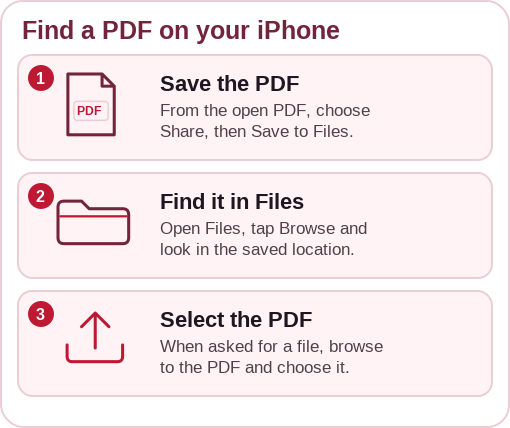
Swipe down and search for Files if you do not see the app. In Files, tap Browse. Look for Downloads under iCloud Drive. If you saved it on this device, look under On My iPhone instead. You can also search by filename.
-
Save a PDF from email first
If the attachment is still sitting in your email, open it, tap Share and choose Save to Files. Pick a folder you can find again. If you just downloaded the file in Safari, check its Downloads menu.
-
Choose the document on your phone
At the Fairview kiosk, tap Print a Document and scan the QR code with your phone camera. Open the link and choose the PDF from Files. Wait for the kiosk to confirm it received the file before choosing print options.
-
Can’t see the file?
Open it again on your phone and make sure it has finished downloading. Check that you selected the actual PDF rather than a screenshot of its first page. If you still need help in store, tap Speak to Our Team.